Change ID Photo Background Online Free: White, Blue or Red
ID photo applications ask for a specific background colour, and the photo you already have rarely matches it. Drop it into the ID Photo tool and the background is replaced in a few clicks.
How do I change the background on an ID photo?
Upload the photo and the AI separates the person from the background without any brushing. Then pick white, blue or red from the Background tab, set the size your form asks for, and download. The photo stays in your browser the whole time.
About ID Photo
Upload a portrait and the tool separates the person from the original background on its own, hair edges included, then drops them onto the colour you pick.
- Free, and there is no limit on how many photos you change.
- It runs in your browser, so a personal portrait is never uploaded.
- White, blue and red are one click each, and the same panel carries four gradients, any custom colour and a transparent option.


Which background colour should I pick?
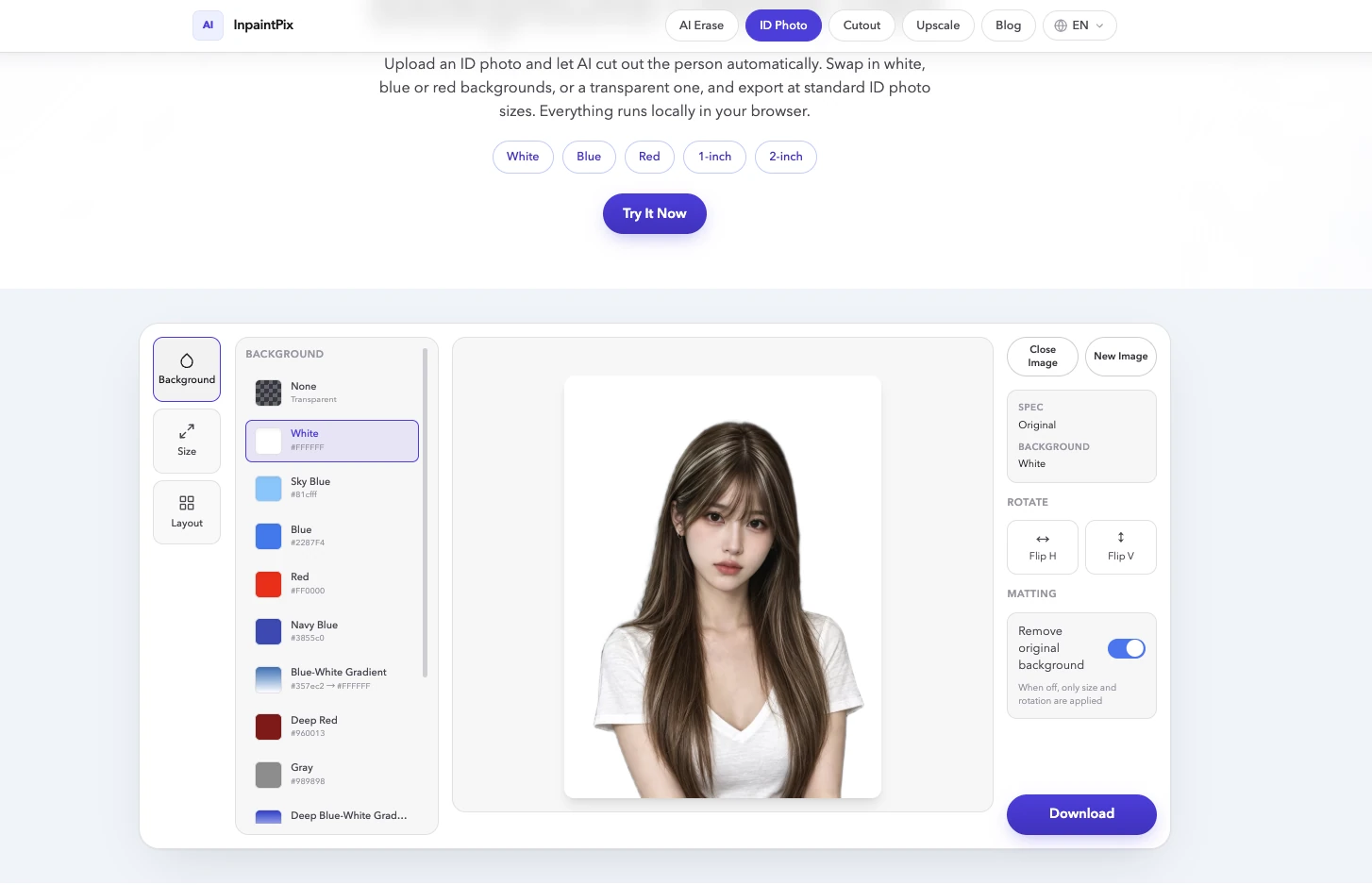
White, blue and red cover most ID and passport forms, and all three are one click away in the Background tab. The same list also carries sky blue, navy blue, deep red, gray and four gradients. Custom Color opens a picker for any colour you want, and None leaves the background transparent.
The box labelled Spec under the tabs shows the size and colour that are applied, so you can check both before you download.
What size should an ID photo be?
The Size tab holds over 400 sizes across 14 categories, from 1-inch and 2-inch photos to 76 visa and 54 passport specs. The search box takes either a name or a measurement, so pick a match from the Results list, or open Custom Size and enter your own width and height.
1Upload a photo
The upload area is labelled Click or drag a photo here. PNG, JPG and WebP all work.
2Pick a background colour
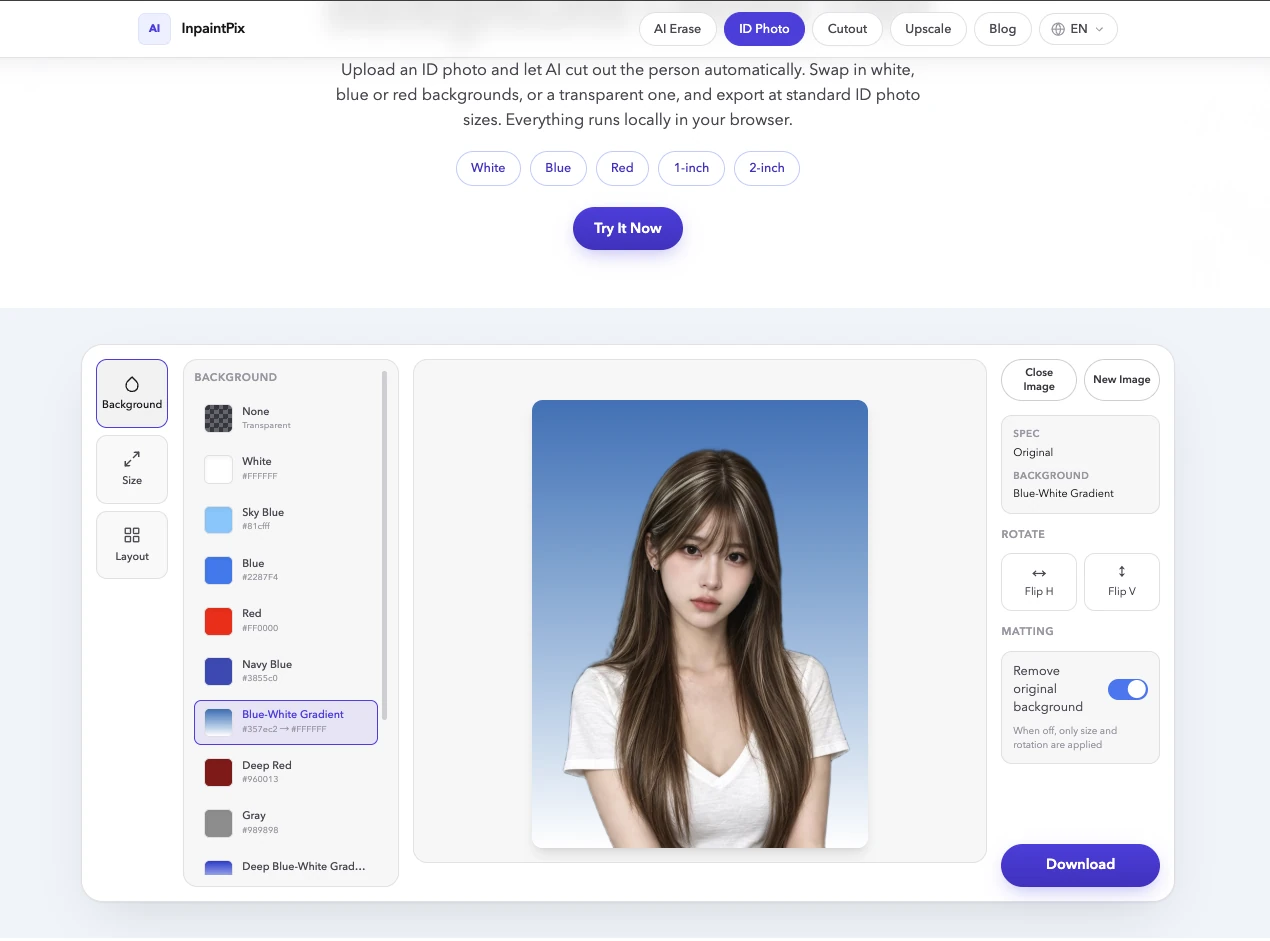
Open the Background tab on the left. White is already selected, so the first result comes back on white. Click another swatch to replace it, or click None to get a transparent background instead.
The workspace updates as soon as you click, with stage lines running past: Analyzing subject, Refining hair edges, Compositing background and Almost done.
3Set the size
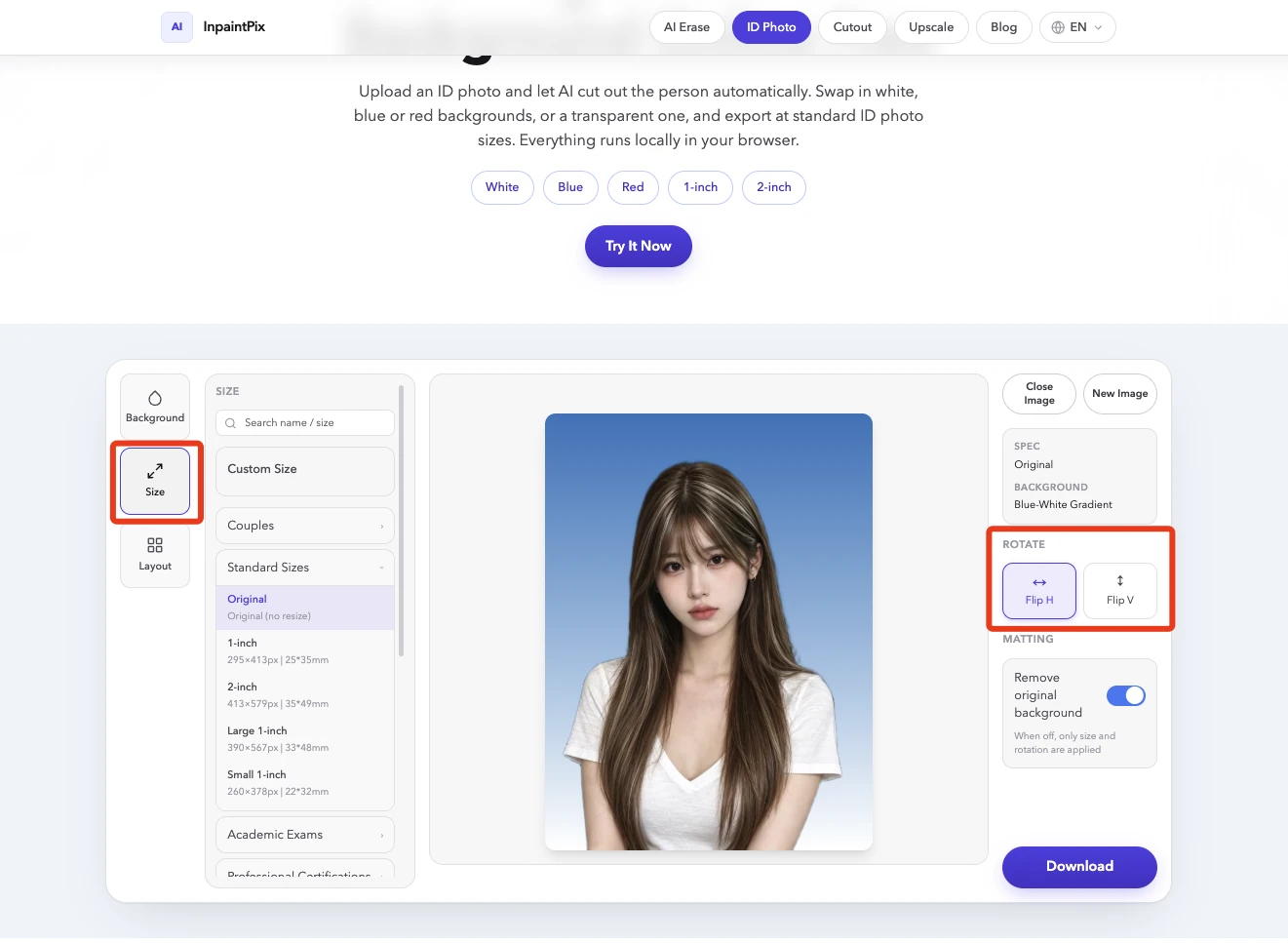
Switch to the Size tab and search for the size your form asks for. The Results list fills in as you type, and picking one reframes the photo.
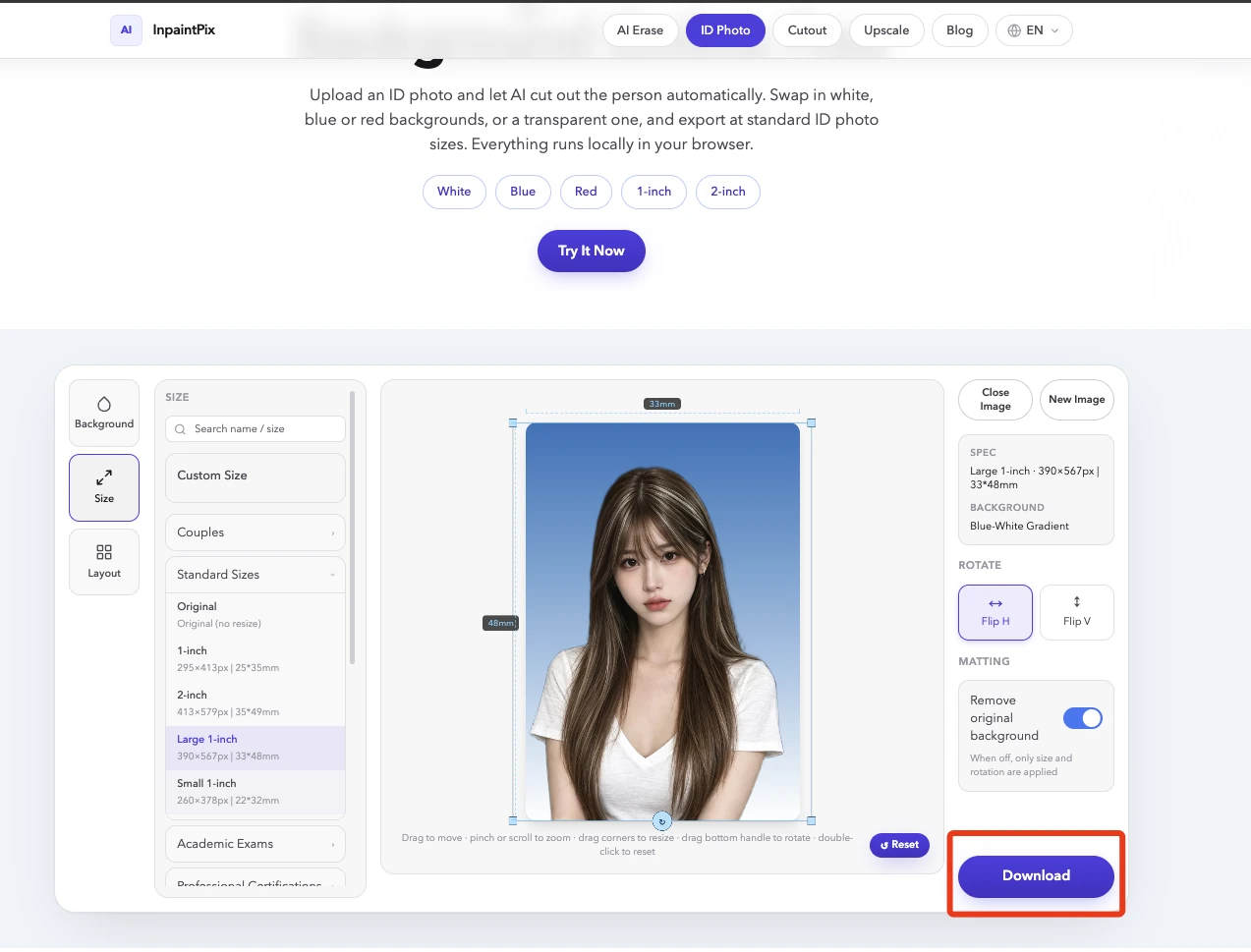
The frame around the photo can be adjusted by hand: drag to move it, pinch or scroll to zoom, drag a corner to resize, drag the bottom handle to rotate, and double-click to reset. The Reset button under the photo area re-centres the photo and clears the zoom and rotation.
Flip H and Flip V mirror the photo. The Matting switch, Remove original background, turns the cutout off when you want only size and rotation applied.
4Download
Use the Original and Result buttons to check the change, then press Download. The file is saved as a PNG, so a transparent background stays transparent. Choose New Image to start the next photo.
More free tools
- AI Erase paints over watermarks, text, people and objects and rebuilds the area behind them.
- Remove Background cuts the subject out and saves it as a transparent PNG.
- Upscale enlarges an image 2x or 4x and rebuilds fine detail.
All of them are free, with no sign-up and no usage limits.
Questions people ask
Do I need to sign up?
No. There is no account to create, and the cutout, background and layout tools have no usage limits.
Are my photos uploaded anywhere?
No. The AI runs inside your browser, so the photo never leaves your device.
Which background colours are supported?
White, blue, red, sky blue, navy blue, deep red and gray, plus four gradients and a transparent option. Custom Color takes any colour you pick.
Can I get a specific ID size?
Yes. The library holds over 400 specs across 14 categories, including 76 visa and 54 passport sizes, and Custom Size lets you enter your own dimensions.
Can I print several copies on one sheet?
Yes. Pick a paper size in the Layout tab and the photos are arranged for you, either as a single size or as a mix of sizes.
Got an ID photo sitting on the wrong background?
Change the Background Free